Sale Order Import
Import multi-line sale orders from CSV or Excel directly in Odoo. Test the file first, review errors in red, then import. Odoo assigns the quotation number — your ID only groups the rows.
Odoo 19 | Free | CSV & Excel
Available on the Odoo Apps Store.
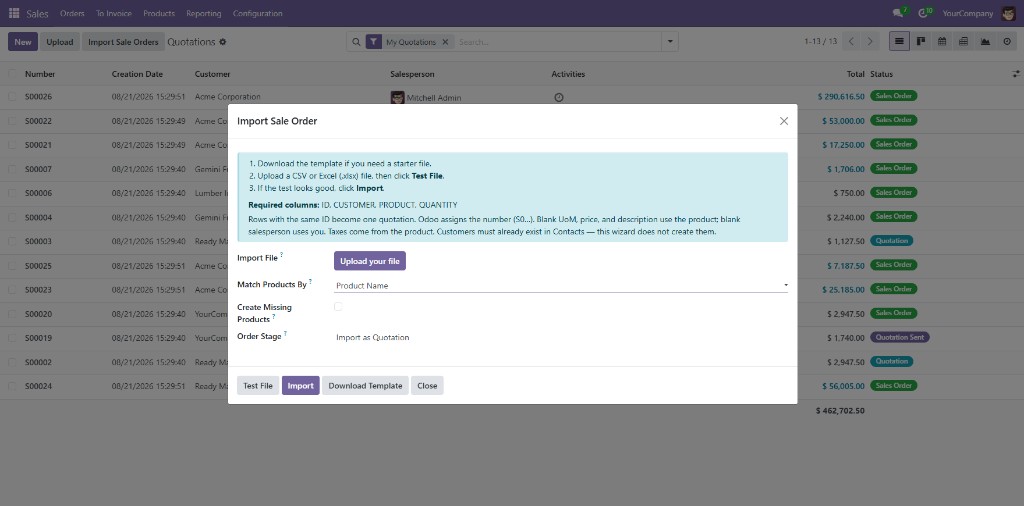
The Import Wizard
Open it from the Quotations list, a quotation form, the Action menu, or Sales → Orders → Import Sale Order. Upload a file, test it, then import. The wizard always creates new quotations — it does not fill the order you currently have open.
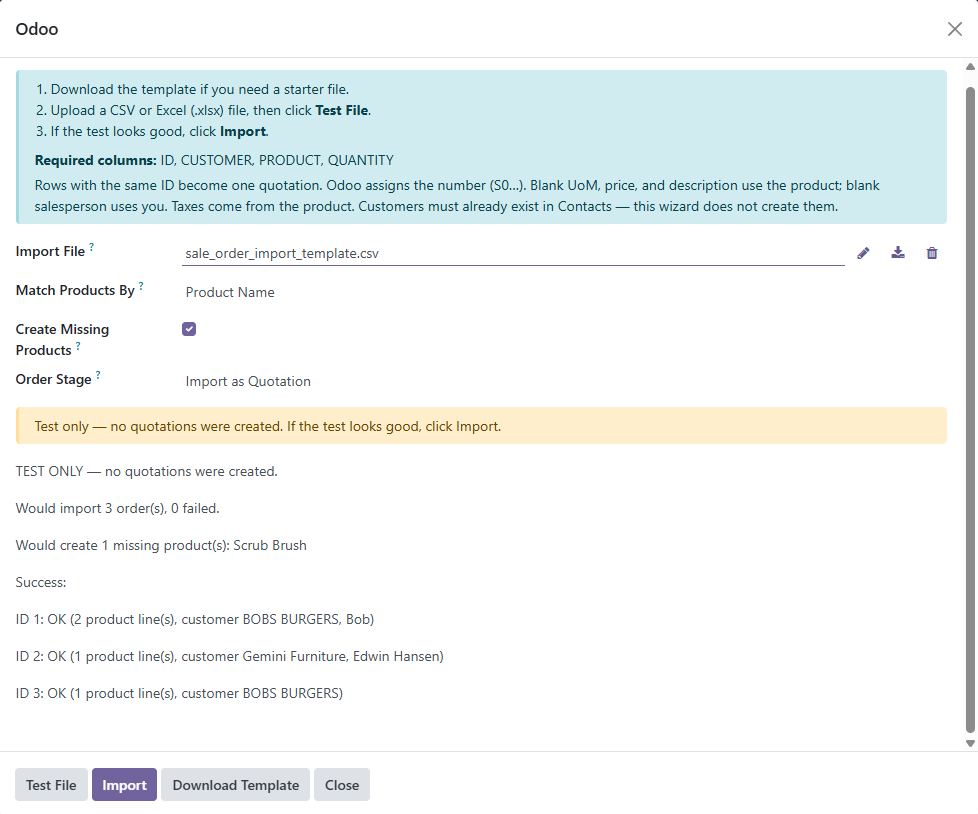
- Test File — same validation as import, with no quotations created and no sequence numbers consumed
- Errors in Red — failed IDs are listed in red so you can fix the file before anything is created
- Product Match — match PRODUCT by Name (default), Internal Reference, or Barcode; exact match only
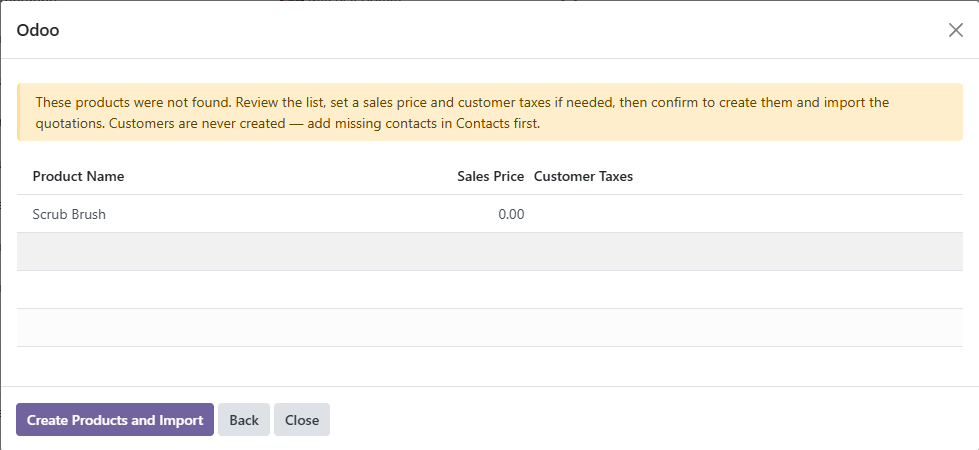
- Missing Products — Sales Managers review each name, set a sales price and customer taxes, then confirm
- Sections & Notes —
LINE_TYPEof section or note becomes an Odoo display line on the quotation - Download Template — starter CSV with the header row and a worked example, downloaded from the wizard
- Open Imported Orders — jump straight to the quotations that succeeded — list if several, form if one
- Per-Order Savepoints — one bad ID does not roll back the rest of the file; each order is isolated
Import Behaviour
- CSV & Excel — upload a
.csvor.xlsxfile; type is detected from the file name; maximum size 10 MB;.xlsis not supported - One ID, One Quotation — rows that share the same ID become one quotation with multiple lines; Odoo always assigns the number from the Sales sequence (S0…)
- Quotation or Confirm — import as a draft quotation, or confirm automatically to a sales order — the same confirm as the Sales form
- Sensible Defaults — blank UoM, price, description, and taxes come from the product; blank salesperson is the user running the import
- Customers Never Created — missing or duplicate customer names fail that ID; add the contact in Contacts first, then import again
- Price & Taxes on New Products — on confirm, set a sales price (prefilled from
PRICEwhen present) and customer taxes from your company’s sale taxes
How It Works
- Open the wizard from Quotations (Import Sale Orders), the quotation form, or Sales → Orders → Import Sale Order.
- Download Template if you need a starter file with the header row and an example.
- Choose how to match products (Name, Internal Reference, or Barcode) and whether to import as a quotation or confirm automatically.
- Upload a
.csvor.xlsxfile and click Test File. - If the test looks good, click Import. If products are missing, set price and taxes, then confirm.
- Use Open Imported Orders to jump to the quotations that succeeded.
File Format
Headers are case-insensitive. Spaces and hyphens become underscores (Line Type → LINE_TYPE). There is no TAX column — sale taxes come from the product.
| Column | Required | Notes |
|---|---|---|
| ID | Yes | Groups rows into one quotation. Not the Odoo quotation number. Aliases: ORDER, ORDER_NUMBER. |
| CUSTOMER | Yes | Exact partner name. Missing or duplicate names fail that order. Contacts are never created. |
| PRODUCT | Product rows | Exact match by the wizard’s match mode. Blank on section/note rows. |
| QUANTITY | Product rows | Greater than zero. Accepts 1.5 or 1,5. |
| PRICELIST | No | Exact pricelist name. Otherwise the customer / company default. |
| DATE | No | One quotation date per ID. Prefer YYYY-MM-DD. |
| LINE_TYPE | No | Blank or product for a normal line. section or note for display lines. |
| DESCRIPTION | No | Leave blank to use the product. Required text for section/note rows. |
| UOM | No | Leave blank to use the product’s sales unit. |
| PRICE | No | Leave blank to use the pricelist / product price. Cannot be negative. |
| SALESPERSON | No | Leave blank to assign the user running the import. |
| CUSTOMER_REFERENCE | No | Optional customer PO. Aliases: CUSTOMER_REF, CLIENT_ORDER_REF, PO. |
CUSTOMER, PRICELIST, SALESPERSON, and DATE are one value per ID. Fill the first row and leave extra rows blank, or repeat the same value.
Access Rights
- Sales User — can open the wizard, test a file, and import quotations; cannot create missing products
- Sales Manager — everything a Sales User can do, plus Create Missing Products — review names, set sales price and customer taxes, then confirm
Requirements
- Odoo 19.0
- Sales (
sale_management) - Python
openpyxlon the server for.xlsxfiles (pip install openpyxl). CSV does not need it. - Contacts must already exist. Products must exist unless you use Create Missing Products (Name match, Sales Managers).
Screenshots